OTOBO | MAKE PEOPLE SMILE. IT’S EASY.
Ticket Management | Case Management
All information about a process at a glance.

TICKET MANAGEMENT | CASE MANAGEMENT
Effective ticket management helps make support more efficient, shorten response times, and improve service quality. When things get busy at the service desk, the service team needs efficient tool support to focus on solving problems and process tickets quickly and efficiently. The core functionality of OTOBO is that of an open source ticket system, which supports you in efficiently capturing requests, properly prioritizing them, automatically routing them to the appropriate team, and monitoring processing progress.

Let employees and customers choose their preferred communication channel. Whether through the self-service portal on the website or intranet, email addresses, or the telephone hotline – OTOBO automatically creates a traceable ticket for each process. Incoming calls can be efficiently documented with dynamically generated ticket forms that adapt to the context at runtime.
The status of a process has changed, the system monitoring identifies an anomaly, or an integrated third-party system communicates via a web service – OTOBO automatically creates a new ticket.

Tickets created via the self-service portal are automatically prioritized by OTOBO and subsequently sorted based on priority to ensure important tasks are addressed first. Tickets created via email or phone are manually prioritized by service agents. OTOBO automatically assigns operations to the correct team, sets Service Level Agreements (SLAs), or groups tickets for analysis and reporting purposes.
You can conveniently integrate additional category trees into ticket forms with dynamic fields and use them as triggers for automated processes.
OTOBO offers the widely used WYSIWYG editor CKEditor 5, providing state-of-the-art functionality. You can format tickets as rich text, add images, links, and other multimedia elements or attachments. The editor simplifies the creation of visually formatted ticket responses, comments, and internal notes.
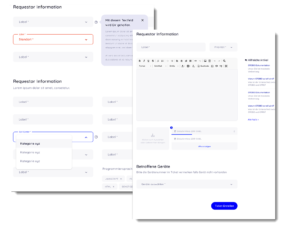
Light and compact ticket forms save valuable time – for your team but also for the user. OTOBO offers numerous ways to easily customize and visually lighten forms or adjust them at runtime to the context and previous inputs.
Using dynamic fields, you can easily and flexibly add relevant information to your tickets during the process, such as additional contact details, product information, data from the CMDB, or external databases, or adjust them as needed.
Incoming requests are quickly and effectively routed to the appropriate teams. Auto-routing improves response time and leads to more efficient resource utilization.
Auto-routing in OTOBO is based on rules and classification criteria, such as ticket categories, priorities, or individually configurable attributes. It is activated once the conditions of the routing rules are met, e.g. whenever a ticket reaches a certain status. For each routing rule, you specify which team is responsible in that case. OTOBO takes care of the rest, automatically moving the ticket to the correct workspace.


Need more flexibility and control to assign tickets to the right team, especially when specific expertise is required?
Through roles and permissions, you control which employees can forward tickets to the next process stage and thus to the next responsible team. OTOBO ensures that the new ticket owners are automatically notified.
Keep track and link related incidents to document relationships, dependencies, or thematic connections. Tickets can also be linked to:
Merge multiple tickets into one target ticket, all articles from the currently processed ticket are chronologically sorted into the target ticket, and the originating ticket receives the status ‘merged.’ If you want to handle a process through multiple teams or outsource certain contents from the history, you split the ticket. Both tickets remain linked.

Save valuable time by simultaneously handling multiple tickets. Apply actions such as status changes, moving to another queue, or assigning an owner to multiple tickets at once.

Predefined email response templates save valuable time during recurring operations and high request volumes, ensuring competent feedback. This allows you to establish professional communication even with less experienced staff. Responses created during ticket processing can be saved as drafts for review by colleagues before sending. Notes can be used for internal communication – they are not visible to external users.

Automatic acknowledgment emails ensure transparency and satisfaction from the start for users. You can rest assured that their request is being processed. You can prepare appropriate auto-responses in OTOBO and assign them to the respective team inboxes. OTOBO takes care of the rest for you once the condition for sending, such as receiving a new ticket, is met.

Create custom ticket statuses that align with your individual service management processes and workflows. The ticket status aids in progress tracking, informs all stakeholders, and can be used as a trigger for automatic follow-up activities.

Promote collaboration and leverage the roles of owner and responsible party to work on issues together or to monitor progress. OTOBO keeps you updated and automatically sends notifications, such as when the status changes, the ticket is closed, or there is a customer response.

In OTOBO, tickets are stored in a tamper-proof manner. From OTOBO 11 on, you can modify and even delete internal ticket articles (i.e. notes) without compromising the fully-complete version history. Each editing step remains securely stored with the ticket.
Ticket status informs about which tickets are being processed, at which stage of processing they are, and who needs to respond next in the communication sequence. Through email or SMS, automated notifications ensure that involved roles are always up to date on status changes, new tickets, or follow-ups in communication.


Set up Service Level Agreements (SLAs) with response and resolution times – either at the service level or within the respective work areas of your teams.
OTOBO automatically monitors the escalation times defined in the SLA to ensure that tickets are processed or resolved within the agreed timeframe. If this is exceeded, OTOBO automatically triggers escalations to ensure that the service team responds appropriately to requests and meets the Service Level Agreement (SLA).
SCALABLE PLATFORM

Ticket management ensures that your users can systematically capture incidents and service requests related to the IT services of your organization and transparently track the progress of their resolution.

Case management, in conjunction with automated processes, enables the efficient resolution of complex cases, such as in customer service and support.

Efficient ticket management forms the foundation for effective service management. It supports communication and the delivery of IT and non-IT services from internal and external service providers in a unified platform.
SERVICE EXCELLENCE